June 8, 2026 · By ChefExtract Team
How to Save Recipes from YouTube (2026 Guide)
YouTube Watch Later is a recipe black hole. Here's how to turn any YouTube cooking video into a clean ingredient list and step-by-step recipe on your phone in under a minute.
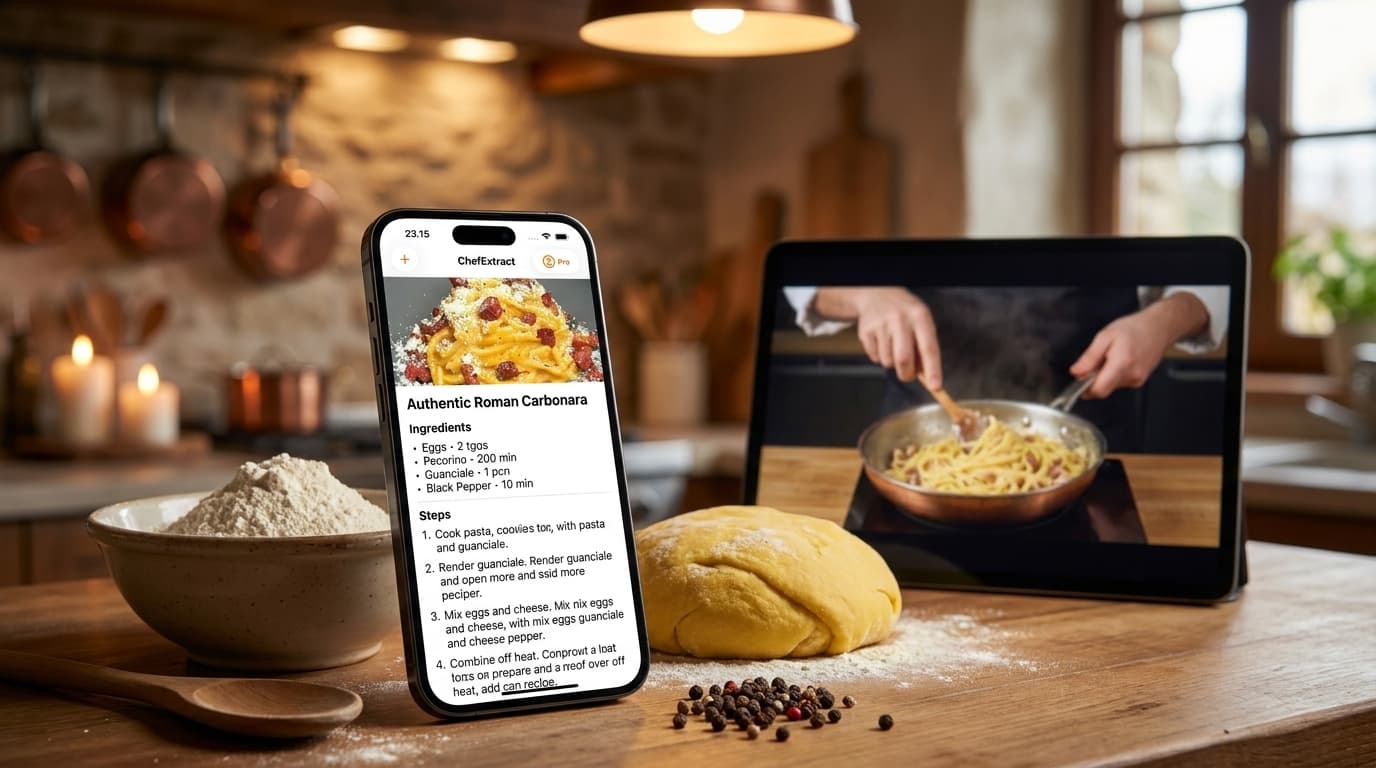
YouTube is one of the best places to learn to cook something genuinely new. A 15-minute video can teach you a technique, show you what the texture should look like at each stage, and give you the timing cues that a written recipe never quite captures. You watch it, you think "I want to make that," and you hit Save to Watch Later.
Then Watch Later does what it always does: it mixes your saved cooking video with 40 other things you bookmarked, gives you no way to search by dish or ingredient, and makes it just inconvenient enough to find the recipe that you end up watching a different video instead of cooking.
This guide covers the actual workflow for getting any YouTube cooking video into a structured recipe on your phone — ingredients, steps, and prep time — without transcribing anything or scrubbing through the video at 6pm.
Why YouTube Watch Later isn't a recipe collection
Watch Later was designed as a queue, not a library. It surfaces whatever you added most recently, it has no search inside the list, and it plays the full video every time you want to check an ingredient.
A few practical problems:
- No dish-based search. You saved a green curry six months ago. You don't remember the channel name. That recipe is gone unless you scroll back through every item in the list.
- No ingredient view. Getting the ingredients requires watching the video again from the start (or at least scrubbing to wherever the creator lists them, which is often somewhere in the first two minutes of a 20-minute video).
- Mixed with everything else. Watch Later doesn't have categories. Your green curry sits next to three documentary trailers and a product review.
- Videos get deleted. If the creator removes the video, your Watch Later entry becomes an error page.
The only way Watch Later is useful as a recipe source is if you happen to remember the channel name and can find the video quickly. Most people can't, most of the time.
Why YouTube is actually easier to extract from than TikTok or Instagram
Here's the good news: YouTube cooking videos are among the easiest to extract from reliably, and the reason is platform culture.
Cooking channels on YouTube know that viewers search for the recipe after watching the video. So they write it out — in the video description, in a pinned comment, or both. It's standard practice on the platform. That means the first place ChefExtract looks isn't the video; it's the text in the description. The video itself is the backup, for the times the description has no recipe.
Compare that to TikTok, where the caption is often just hashtags, and the whole recipe is embedded in audio and on-screen text that has to be parsed frame-by-frame. YouTube's text-first recipe culture makes extractions faster and more accurate.
The 3-step workflow: from Watch Later to your cookbook
- On YouTube: tap the share icon below the video, then "Copy link." On mobile, the share button is the arrow icon.
- Open ChefExtract: the link is detected from your clipboard automatically. Tap Extract.
- Done in ~15-20 seconds: when the description has the recipe, it appears right away. When it doesn't, ChefExtract watches the video itself in the background (up to 30 minutes long) and sends a notification when the recipe is ready.


The recipe lives on your phone — searchable, offline-ready, with a source link back to the original video so you can rewatch any technique.
What the extractor reads from a YouTube video
ChefExtract works in two steps.
First, the title and description. Most cooking channels write the recipe there, so this step is quick and accurate. Tap "Show more" under almost any popular cooking video and you'll usually find a formatted ingredient list and numbered steps. When it's there, you get the recipe in seconds.
Then, the video itself. If the description has no recipe (a vlog-style video, a Short, a description that is only links), ChefExtract watches the video: what the creator says and what appears on screen, including text overlays. This takes longer, so it runs in the background and you get a notification when the recipe is ready, usually within a few minutes. If you haven't signed in yet, keep the app open while it works.
Either way, ChefExtract only writes down what is really in the description or the video. If neither has a recipe, it tells you so instead of inventing one.
When YouTube extractions come back thin
The most common case is the vlog-style cooking video: the creator films themselves cooking and talks about the dish, but never writes down a recipe or clearly says the quantities. Even when ChefExtract watches the video, there may be nothing precise to capture, and you'll see a message that no recipe was found.
Watching the video also has limits. It works with public videos up to 30 minutes long. Private or deleted videos can't be opened, unlisted and age-restricted videos may not work, and live streams and premieres have to finish first. ChefExtract processes one video at a time.
What to do when an extraction comes back thin or empty:
- Check the description first. On mobile, you might need to tap "more" to expand it. Many creators write the recipe there even when the video doesn't show it on screen.
- Check the pinned comment. Some creators post the recipe as a comment rather than in the description. If you find it there, you can copy it into the recipe editor.
- Look for a link to the creator's website. Many channels link the full recipe on their blog from the description. Copy that web address and extract it instead: recipe websites are structured text and extract very well.
- Try a different video. Search the same dish on YouTube and look for channels that explicitly say "recipe in description".
- Edit by hand. If the video has what you need and you don't want a different source, you can fill in the missing quantities yourself. Every field in ChefExtract is editable.
- Report it. If you're sure the video contains a recipe, tap Report this video when the error appears. It helps us fix the cases we miss.
A realistic baseline: any YouTube cooking video with a structured description extracts very well, and videos where the creator clearly says or shows the ingredients usually work even without one. Videos that never state quantities are hard for anyone, because there is nothing precise to capture.
A note on YouTube Shorts
Shorts usually have a minimal description, so ChefExtract typically watches the video itself. Because Shorts are short, this is quick. If a Short still doesn't give you a recipe, look for the creator's long version of the same dish: it almost always has the recipe in the description.
Setting up for repeat use
Once you've run one extraction, the workflow becomes automatic:
- You see a cooking video you want to try.
- You tap share → copy link.
- You open ChefExtract — the clipboard is already there.
- You tap Extract.
- You save it and move on.
Total time: 20 seconds. The recipe is in your cookbook permanently, organized alongside everything else you've saved from Instagram, TikTok, or Facebook. No separate Watch Later list, no hunting for a channel name, no scrubbing through a video you've already watched.
If you save from multiple platforms, the complete guide to saving recipes from social media covers the full cross-platform workflow in one place. And browse a few example recipes to see what an extracted recipe actually looks like before installing.
Try ChefExtract free
Save your first recipe in seconds. No account required.